 LeaGuard
For people who manage networks and devices remotely: installers, sysadmins, IT technicians
Keep an eye on the network. Always. Even when you're not there.
If a device goes down, you know right away. And you fix it before the client calls you.
It watches cameras, NVRs, NAS, servers, routers, switches, access points, alarms and home automation around the clock: the moment something stops responding, it alerts you by email or HTTP alarm.
On your phone
The alert reaches you wherever you are
Email, HTTP alarm and push notification: when a device stops responding it tells you at once, even when you're away from the PC.
Install the Client
On the installation's PC (Windows). It checks each device's reachability locally, detects IP conflicts and network drops, and keeps alarming on its own even if the backend is unreachable.
The Cloud receives the check-ins
The centralized dashboard receives the periodic check-ins and notices right away if an installation stops responding, even when the problem is on the PC itself. With Scout, the Cloud also checks the addresses you give it from the outside.
Get the alert
Email or HTTP request (relay) in real time, with the full history of every event always available from the dashboard.
Pricing
Annual subscription, VAT included. No hidden costs.
| What you get | Monitoring | + Access Control | Scout |
|---|---|---|---|
| Local network host monitoring (ping, email/HTTP) | ✓ | ✓ | - |
| Access Control (installation system events) | ✕ | ✓ | - |
| Monitoring of a remote IP or DDNS from the internetup to 8 target edits per year, per probe | - | - | ✓ |
| Centralized dashboard, event history, notifications | ✓ | ✓ | ✓ |
Frequently asked questions
FAQ: what LeaGuard is, how it works, what it costs
The problem it solves
How do I know if an installation has gone offline?
The Client installed on the installation sends the Cloud a check-in at regular intervals. When the check-ins stop arriving for longer than the silence threshold you set, the Cloud alerts you: that installation is not responding.
Can I check remotely whether cameras and NVRs are reachable, without going on site?
Yes. The Client checks the reachability of every device you point it at (cameras, NVRs, NAS, servers, routers, switches, alarm panels) from inside the network and reports the status on the dashboard, which you can open from anywhere.
How long does it take LeaGuard to notice that an installation has gone silent?
You decide, installation by installation: you set how often the Client must report in and how many minutes of silence to tolerate before the alarm. A critical installation can have a threshold of a few minutes, a secondary one a wider margin.
What happens if the installation's PC shuts down or the customer's connection drops?
If only the connection drops, the Client keeps checking the local network and firing HTTP alarms to the relays on the installation, while the Cloud reports the silence. If the PC shuts down, the Cloud reports the silence and, on restart, the Client warns that the PC had shut down unexpectedly.
Can I also monitor a remote IP or DDNS address, not just the local network?
Yes, with LeaGuard Scout: the Cloud itself checks a port on a public IP or a DDNS name from the internet, with nothing installed on site. It is meant for installations without a PC, such as a stand-alone alarm panel or an NVR reachable from outside. See the "Client or Scout" section.
Does LeaGuard also detect IP address conflicts between devices?
Yes. The Client keeps track of each device's MAC and, if the same IP starts answering with a different MAC, it reports a conflict.
What happens if a device becomes unstable instead of disappearing altogether?
You still see it: a device that comes and goes is marked as unstable and reported, without waiting for it to be completely down and without flooding you with alerts at every bounce.
Do I need a public IP or to open ports on the customer's router?
Not for the Client: it always calls outwards, never the other way around. It works behind CGNAT and over LTE connections too, with no port forwarding. Scout probes, on the other hand, check from the outside, so the device being probed must be reachable from the internet (public IP or DDNS, with the port forwarded).
Will I notice if the installation loses power?
Yes, in two ways: the dashboard reports the silence as soon as the check-ins stop arriving, and when power returns the Client warns that the PC had shut down unexpectedly.
How much data does it use? Is it fine on a SIM connection?
Very little. Pings stay inside the local network, and only the check-ins travel to the Cloud, which are lightweight messages. It works fine on an LTE router too.
Client or Scout: which one do I need?
What is the difference between the Client and Scout?
The Client is the program you install on the installation's Windows PC: it watches the network from the inside, checks every device on the local network, detects IP conflicts and network drops, and keeps alarming on its own even without internet. Scout is the service the Cloud uses to watch from the outside: it checks that a port on a public IP or a DDNS name answers, with nothing installed on site. The Client is priced per installation, Scout per probe.
When should I use the Client and when Scout?
If there is a PC on site that can stay on, the Client: it sees the whole installation, including devices with no public address, and one licence covers the entire network. If there is no PC, or you only need to know whether a device exposed to the internet answers (a stand-alone alarm panel, an NVR with DDNS, a router), Scout: an address and a port are all it takes.
Can I use the Client and Scout on the same installation?
Yes, and it often makes sense: the Client checks the internal network, a Scout probe checks from the outside that the installation is reachable from the internet. If the customer's line drops, both tell you, from two different points of view.
What does a Scout probe see, and what does it not see?
It sees whether a TCP port accepts a connection from the internet, and tells three cases apart: the service refuses, nobody answers, the DDNS name does not resolve. It does not see internal devices that are not exposed, does not read MACs and does not detect IP conflicts: that is what the Client is for. If you probe several ports of the same probe site, the network diagnosis tries to tell you whether the line is down, the port is not forwarded or the device is off.
What does one Scout licence cover?
One probe, that is one port on one address. Probes on the same address are grouped into a probe site, and each has its own thresholds. Scout licences form a pool: you assign them to the ports you want and, if you need more, you add some. Each probe can change address or port up to 8 times a year.
Notifications and alarms
Does LeaGuard email me when something stops responding?
Yes, always: the email says which device, in which installation and for how long it has not been responding, and the event stays in the dashboard history.
Can I also receive the alarm as an HTTP request to a relay?
Yes, instead of or in addition to email: the Client calls an HTTP address on the local network to trigger a relay, a siren or a dialler. It works without internet too, because everything stays inside the installation.
Do I get a notice when the installation comes back online too?
Yes, the recovery notification arrives on its own, so you also know how long the problem lasted.
Can I see the past event history of an installation?
Yes: every drop, recovery, instability and conflict stays in the dashboard history, available at any time.
If several installations go down together, do I get one email each?
No: if several installations go silent at the same time, the Cloud sends a single summary notification instead of a storm of emails.
Can I pause alerts for one host for a while?
Yes, with snooze: you silence a single device or probe for as long as you decide, or until you turn it back on. It stays visible on the dashboard, but it colours nothing and alerts nobody.
Can I receive alerts directly on my phone?
Yes: besides email there is push notification through the free ntfy app, and the dashboard works on a smartphone too.
Setup and everyday use
Do I need to install something on the customer's PC, or is a phone app enough?
To monitor the local network you need the Client on the installation's PC (Windows). For a Scout probe nothing is installed. You open the dashboard from any browser, phone included.
What kind of PC does the Client need?
An existing Windows PC, even a mini PC: the Client is lightweight. It only needs to stay on and connected to the installation's network.
How many installations can I manage with one account?
As many as you want: each Client licence covers one installation, the account groups them all in a single dashboard.
Do my end customers have to register or pay anything?
No: the subscription is yours, the installer's. Your customers do not need to register or pay anything to LeaGuard; how you fit the service into your own contract is up to you.
Do my customers see anything, or is it all managed by me?
By default you manage everything. If needed, you can share an installation or a probe site with another account, read-only or with management rights; sharing is accepted and revoked at any time.
Can I organize installations by customer or by area?
Yes: the dashboard has folders, and every installation and every probe site can be renamed as you like.
Can I quickly search and filter among many installations?
Yes: the dashboard has search by installation name, host name and IP, plus filters by status, so you immediately see only the ones in alarm or silent.
Does the dashboard work well on a smartphone?
Yes, it has a view designed for the phone: the same information, in a single column.
What do I see as soon as I open the dashboard?
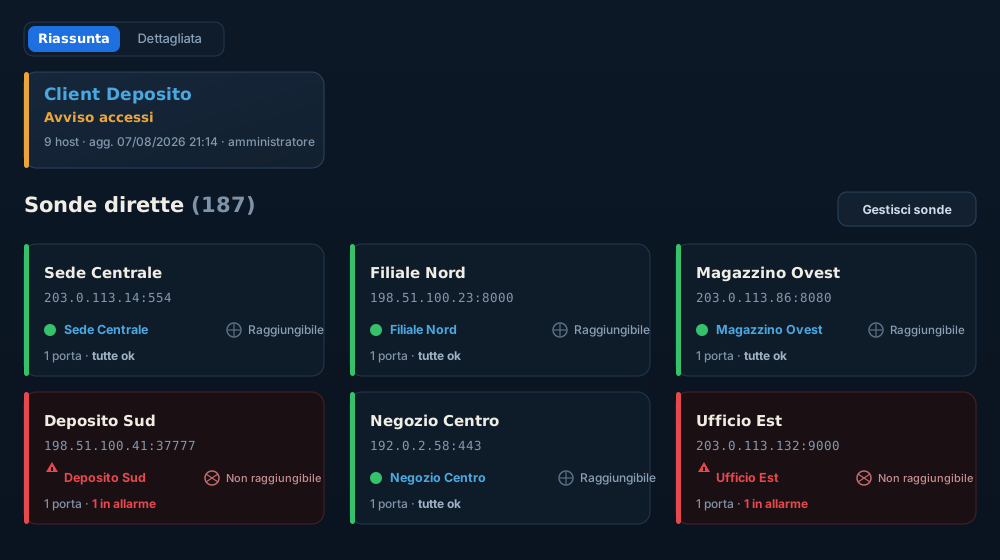
All installations and probe sites at a glance, with the ones needing attention always on top, and for each one what is not responding and for how long.
Access Control
What does "Access Control" include compared with Monitoring alone?
The system events of the installation's PC: user logins, power-ons, abnormal shutdowns. Monitoring tells you whether the network responds; Access Control also tells you who touched the PC and when.
Can I enable it on an existing installation?
Yes, at any time: you move to the Monitoring + Access Control tier from the panel, with nothing to reinstall on the PC.
Does Access Control require extra hardware?
No: it is an extension of the Client licence on the same PC. Nothing more is needed.
Surveillance station
Is there a view for a staffed surveillance room?
Yes: LeaGuard Watch is the operator station app. It shows a dashboard of cards, one per probe site, with audible alarms, acknowledgement with the name of who saw it and a history of actions. It is included in the subscription, with no separate licence.
Can alarms be announced by voice?
Yes: the Watch station reads alarms out loud with Windows speech synthesis, in Italian or English, and can be muted for a few minutes when needed.
Pricing and licences
How much does LeaGuard cost?
Current prices are in the section above: one Client licence per installation, in the Monitoring or Monitoring + Access Control tier, and one Scout licence per probe. The Watch station is included. Everything is an annual subscription, VAT included.
What happens if I do not renew in time?
Growing warnings before expiry, then a grace period in which everything still works, then the block: never a sudden surprise, and your data stays.
Can I try LeaGuard before signing up?
Yes, with the interactive demo on this website: no download, no registration.
Can I move the licence to another PC if I change hardware?
Yes: a Client licence is released from the PC and reactivated on another one, up to twice in twelve months.
If I add an installation mid-year, do I pay the full subscription?
No, you only pay the remaining part of the year (pro rata), so all your licences expire together.
Do all my licences expire together, or each on its own?
Together: the account has one expiry date, one renewal, one reminder email.
Do prices include VAT?
Yes, they are always final prices, VAT included.
Can I cancel at any time?
Yes: there is no commitment beyond the year already paid. You simply do not renew.
Reliability and data
Does LeaGuard work on installations with no internet connection?
The Client partly does: it keeps checking the local network and firing the HTTP relays, but without internet it sends no email and the Cloud cannot hear it. An installation with no connection at all cannot be monitored remotely, by definition.
If the Cloud had an outage, are my installations left unwatched?
No: local monitoring does not depend on the Cloud. Pings, emails and HTTP alarms keep working on site even while the dashboard is unreachable. Scout probes, which live in the Cloud, resume together with it.
Is my installation data private?
Yes: each account sees only its own installations and the probe sites shared with it, never anyone else's.
Where is the data hosted?
On servers in the European Union, at the provider Aruba S.p.A.: no transfer outside the European Economic Area is planned.
What happens to my data if I stop using LeaGuard?
It stays yours and remains available as long as the account is active; you can ask for its deletion at any time.
Support and language
Who do I contact if I have a problem with LeaGuard?
The person who builds it, directly: write to luca@leaguard.com and you talk to Luca, not to a call center. The dashboard also has a Feedback page for reports and suggestions.
Is the interface available in English too?
Yes: the dashboard, the Client and the Watch station are available in Italian and English, and emails follow the account language.
Do I need advanced technical skills to set it up?
No: the setup is designed for an installer, not a programmer. If you can assign an IP to a camera, you can configure LeaGuard.
Is there documentation or a manual?
There is no separate manual yet: the product is meant to explain itself, with a hint on every field. What is new in each version is in the What's new page of the dashboard, and for any doubt write to luca@leaguard.com.
Compared with other solutions
How is LeaGuard different from generic network monitoring software?
It is built for people who install and maintain security installations at their customers' premises, not for the IT department of a single company: many small installations, each with its own network, seen from one place, with no servers to configure and no graphs to interpret.
Does LeaGuard replace the alarm system or the video surveillance system?
No, it works alongside them: it checks that those systems are reachable and working, and alerts you when they are not.
Can I use LeaGuard with the camera/NVR brands I already use?
Yes: monitoring checks network reachability, which does not depend on the brand: Hikvision, Dahua, Hanwha, Axis, Ubiquiti or any other manufacturer.
Updates and roadmap
Does LeaGuard update itself?
Yes: the Client and the Watch station download and install updates on their own, accepting only signed packages. The Cloud updates by itself, with nothing for you to do.
What kind of devices can I monitor?
Anything that answers on a network: cameras, NVRs, routers, switches, access points, NAS, servers, IP alarm panels and home automation; and with Scout, any service exposed to the internet.
Is LeaGuard still under active development?
Yes: new features arrive regularly, shaped by the people who actually use it. What is new in each version is listed in the dashboard.
Useful features
Can I manage the "cooldown" so I do not get too many emails from the same device?
Yes: the minimum time between one notification and the next for the same device is configurable in the Client, so a bouncing device does not fill your inbox.
Does LeaGuard notice if a device changes its IP address (e.g. after a router reboot)?
Yes: if it finds the same device (same MAC) on another IP, it proposes adopting the new address and you confirm from the dashboard, with nothing to retype.
Are the times I see in my time zone, even if the server is elsewhere?
Yes, each account has its own configurable time zone: dashboard and emails use that one.
Can I get a periodic report in addition to real-time alarms?
Yes: the Cloud sends you a daily or weekly report with everything that caused trouble in the period, already-recovered faults included, and the Client has a Report section for the single installation.
Can I rename installations so I recognize them at a glance on the dashboard?
Yes, at any time, without losing the history.
Can I quickly import several devices instead of adding them one by one?
Yes: in the Client with the automatic network scan or the Excel import; in the Cloud, Scout probes are imported from an Excel sheet.
Does LeaGuard also tell me the manufacturer of a device just discovered on the network?
Yes: the scan recognizes the most common manufacturers from the MAC, so a camera stands out from a switch even before you name it.
Questions, requests, a quote?
Write directly to the person who builds LeaGuard. Information, special requests, quotes for several installations: a real person answers, not a call center.